How to Use Delinked Nodes for Efficient Automation in Silvercore.io
How to Use Delinked Nodes for Efficient Automation in Silvercore.io
A Silvercore.io Guide to the Advanced Workflow Builder
Stop Building Separate Workflows for Everything
If you're managing automations at any kind of scale, you've probably felt the pain: separate workflows for SMS replies, separate workflows for email follow-ups, separate workflows for Instagram DMs. Before long, your automation list looks like a filing cabinet that exploded.
Silvercore.io — built on HighLevel — is designed to cut through that complexity. One of the most effective tools for doing that is the delinked node, a feature in the Advanced Workflow Builder that lets you run parallel, independent automation branches inside a single workflow. It's a small change in how you build that produces a big change in how you manage and scale.
What Are Delinked Nodes?
In a standard Silvercore.io automation, everything flows in a straight line: one trigger, one sequence of actions, one path. This works fine for simple automations, but it breaks down when you're managing multiple channels or want to keep related logic in the same place without forcing it through a single linear path.
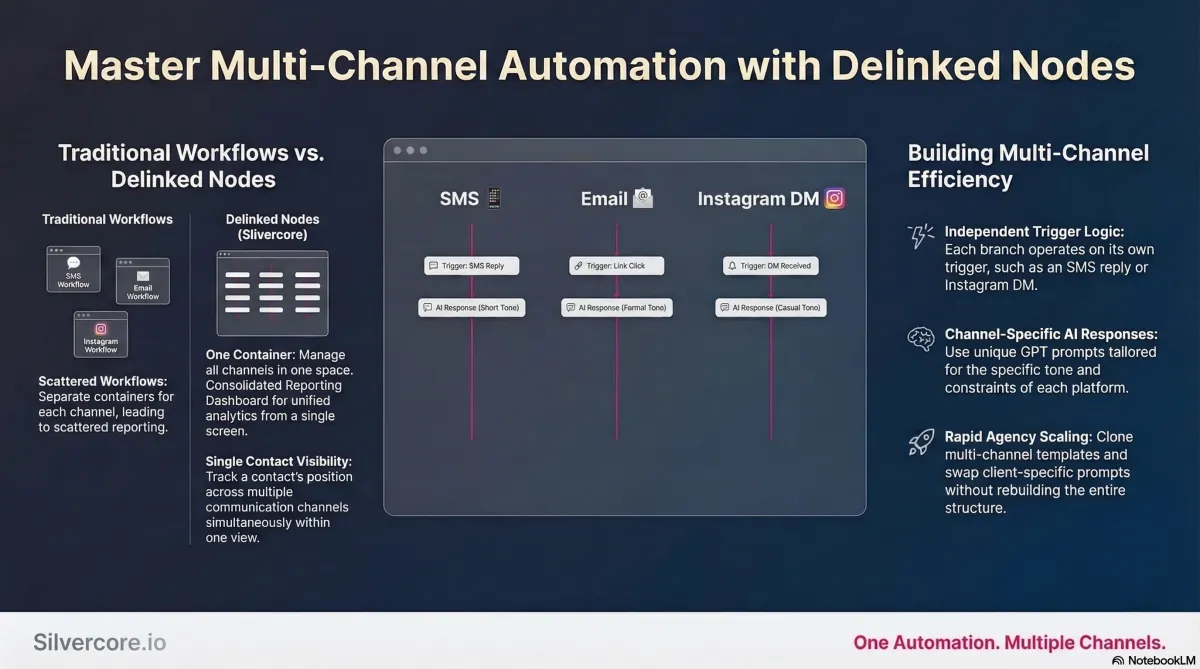
Delinked nodes solve this by letting you place independent node chains on the same canvas — each with its own trigger, its own actions, and its own logic — without connecting them to each other. They're delinked, meaning they operate independently, but they share the same automation container.
Think of it like separate lanes on the same highway. Each lane moves independently, but they're all heading in the same direction and visible from the same vantage point.
Because they live in the same automation, delinked branches share consolidated reporting, unified contact visibility, and a single management interface. You're not splitting your attention across a dozen separate workflows — you're running parallel logic inside one organized space.
How Delinked Nodes Work in the Advanced Workflow Builder
Silvercore.io's Advanced Workflow Builder labels everything on the canvas as nodes — triggers, actions, conditions, GPT blocks, and more. A delinked node is simply a node (or a chain of nodes) that sits independently on the canvas, not connected to any other chain.
Each independent chain can:
Use a completely different trigger type — customer reply on SMS, email reply, Instagram DM, and more
Contain different actions customized to that channel — SMS send, email send, Instagram message
Use its own GPT prompt or AI action for channel-appropriate responses
Be modified, duplicated, or tested without affecting any other branch on the canvas
Delinked Nodes vs. Traditional Linear Automations
Traditional automations require you to build a separate workflow for every independent behavior. Delinked nodes give you independence within a single container — which means consolidated reporting, cleaner organization, and less overhead. Here's what that looks like in practice:
ational Automations
Delinked Nodes (Silvercore Approach)
One workflow per channel
All channels in one automation
Scattered reporting
Consolidated analytics dashboard
Must duplicate to test variants
Duplicate nodes within same automation
Hard to track contacts across channels
Single contact view across all branches
Practical Use Case: Conversation AI Across SMS, Email, and Instagram
One of the most powerful applications Silvercore.io uses for delinked nodes is multi-channel Conversation AI — where customer replies on different platforms are each handled by AI-generated responses tailored to that channel.
Without delinked nodes, this requires three separate automations. With them, it's three independent branches inside one automation. Here's how each branch is structured:
Branch 1 — SMS
Trigger: Customer Reply (SMS channel)
Action 1: GPT Node — prompt tuned for short, conversational replies
Action 2: Send SMS action
Sample SMS Prompt: "Write a friendly, helpful reply in 40 words or less. Avoid formal language. Do not include links unless specifically requested."
Branch 2 — Email
Trigger: Customer Reply (Email channel)
Action 1: GPT Node — prompt tuned to craft a subject line and structured body
Action 2: Send Email action
Sample Email Prompt: "Create a professional but conversational email reply. Include a suggested subject line on the first line, followed by the email body. Keep the tone warm and clear."
Branch 3 — Instagram DM
Trigger: Instagram DM Reply
Action 1: GPT Node — prompt optimized for casual, platform-native tone
Action 2: Instagram DM Send action
Sample Instagram Prompt: "Draft a short, friendly DM reply in plain text. Keep it casual and natural. One or two emojis are fine if they fit the context. Maximum 2 sentences."
Because these branches are delinked, they operate independently. A contact who replies on both SMS and email will progress through both branches simultaneously, and you can see their position in each from inside the same automation — no jumping between workflows.
Step-by-Step: Building Delinked Node Automations in Silvercore.io
Follow this process to set up your first delinked node automation inside the Advanced Workflow Builder.
Open the Advanced Workflow Builder. Create a new automation or open an existing one. Make sure you're in the Advanced Builder, not the standard builder.
Place your first trigger. Add a trigger node for your first channel — for example, Customer Replied (SMS). Drop it on the canvas wherever you want it to live.
Build out the first branch. Add the actions for that branch: a GPT (Conversation AI) node if you want AI-generated replies, followed by a Send SMS action. Keep them connected to each other, but don't connect this chain to anything else.
Add your second trigger separately. Drop a new trigger node — for example, Customer Replied (Email) — somewhere else on the canvas. Do not connect it to the first chain. This is what makes it delinked.
Configure the second branch. Add a GPT node with an email-specific prompt and a Send Email action. Connect them within that branch only.
Repeat for additional channels. Add Instagram DM, Facebook, or any other supported channels the same way — each as an independent delinked chain on the canvas.
Test each branch independently. Trigger test events for each channel and confirm the correct GPT prompt fires and the right send action executes.
Save and publish. All delinked branches are saved and published as one automation. Each will fire independently based on its own trigger criteria.
Tactical Tips for GPT Prompts and AI Actions
Be channel-specific in every prompt. Include hard constraints like '40 words or less' for SMS or 'include subject line on first line' for email. Channel-aware prompts produce dramatically better output.
Build a prompt library. Store your best-performing prompts in a shared doc or template. When setting up a new client, copy and adapt rather than starting from scratch.
Version your nodes. When testing prompt variations, duplicate the GPT node and label it clearly — for example, 'Email GPT - Formal v1' vs. 'Email GPT - Casual v2.' This keeps testing organized without breaking live logic.
Add compliance guardrails. Include instructions in your prompts to avoid disallowed claims, sensitive topics, or off-brand language. This is especially important for regulated industries.
Monitor by branch. Use Silvercore.io's built-in analytics to watch deliverability, open rates, and reply rates per branch. If one prompt is underperforming, iterate on it without touching the others.
How Silvercore.io Uses Delinked Nodes to Scale Agency Automations
For agencies managing multiple clients on Silvercore.io, delinked nodes aren't just a convenience — they're a scaling strategy. Here's how the Silvercore.io approach translates to agency operations:
Template Economies
Build automation templates with delinked branches for common use cases — lead qualification, re-engagement sequences, booking confirmations, onboarding flows. Clone and customize per client. The multi-channel structure is already in place; you just swap in client-specific prompts and branding.
Single-Pane Reporting for Client Audits
Instead of pulling data from five separate automations for a monthly report, everything is in one place. Consolidated deliverability, engagement, and conversion stats across SMS, email, and Instagram — all from a single automation screen.
Faster Implementation
Copying and adjusting nodes inside an existing automation is faster than building new workflows from scratch. When a client adds a new channel, you add a new delinked branch — you don't rebuild.
Cleaner Team Handoffs
When onboarding a team member or handing off a client account, a single well-organized automation with clear node labels is far easier to navigate than a folder full of disconnected workflows. Everyone can see the full logic at a glance.
Common Issues and How to Avoid Them
Delinked nodes are straightforward once you understand the structure, but a few pitfalls are worth watching for:
Complexity creep. A canvas with many delinked branches can get visually dense fast. Use consistent naming conventions — 'Channel - Purpose - Version' (e.g., 'SMS - Lead Nurture - v2') — and label nodes clearly. Good hygiene now saves debugging time later.
Overlapping triggers. A generic 'Customer Replied' trigger may fire in multiple branches if it's not scoped by channel. Make sure each trigger is channel-specific to prevent unintended double-fires.
Unintentional edits. In a shared team environment, someone editing the email branch shouldn't accidentally touch the SMS branch. Walk team members through the single-automation architecture before giving edit access.
Untested branches. Test every branch independently before publishing. It's easy to focus on one channel and forget to validate the others. Use a staging contact for each test.
Troubleshooting Checklist
Are all triggers scoped to the correct channel?
Do GPT prompts include channel-specific instructions and constraints?
Are node names versioned and clearly labeled?
Have you tested each branch independently using a staging contact?
Are analytics configured to compare performance across branches?
Have team members been briefed on the single-automation architecture?
Frequently Asked Questions
Can a single contact trigger multiple delinked branches at the same time?
Yes. If a contact meets the trigger criteria for more than one branch — for example, they reply on both SMS and email — they can progress through both branches simultaneously. You'll see their position in each branch from inside the same automation, which makes cross-channel engagement tracking much easier.
Do I need special account settings to use delinked nodes?
No special settings are required. Delinked nodes are part of the standard Advanced Workflow Builder experience in Silvercore.io, built on HighLevel. You'll need access to the Advanced Builder and the relevant channel integrations (SMS, email, Instagram) enabled in your account.
Can I connect delinked nodes later if I want them to interact?
Yes. Nodes can remain independent and be connected later if you want branches to merge, hand off, or share logic at a certain point. This gives you flexibility to start simple and add complexity only where it's needed.
How do I compare performance between branches?
Use the automation's built-in analytics to track deliverability, open rates, click rates, and responses per branch. Because all branches live in the same automation, comparing their stats is straightforward — no aggregating from multiple separate reports.
What's the best way to name and organize nodes?
Silvercore.io recommends a consistent naming format: Channel - Purpose - Version. For example: 'Email - Onboarding - v1' or 'SMS - Re-engagement - Casual v2.' Group related nodes visually on the canvas, and document prompt variations and test dates in a shared reference.
Delinked nodes don't just clean up your automation list — they change how you think about workflow design. Instead of asking 'what's the one path this contact should take,' you start asking 'what are all the parallel things that should happen when this contact engages,' and you build for that reality.
For agencies and operators running Silvercore.io at scale, this matters. Less overhead, faster iteration, cleaner reporting, and better visibility across channels — all from a structural change in how you use the builder you already have.
Silvercore.io helps teams build smarter, faster automation systems. Start with one automation, convert a few related workflows into delinked branches, and see what becomes possible.